-
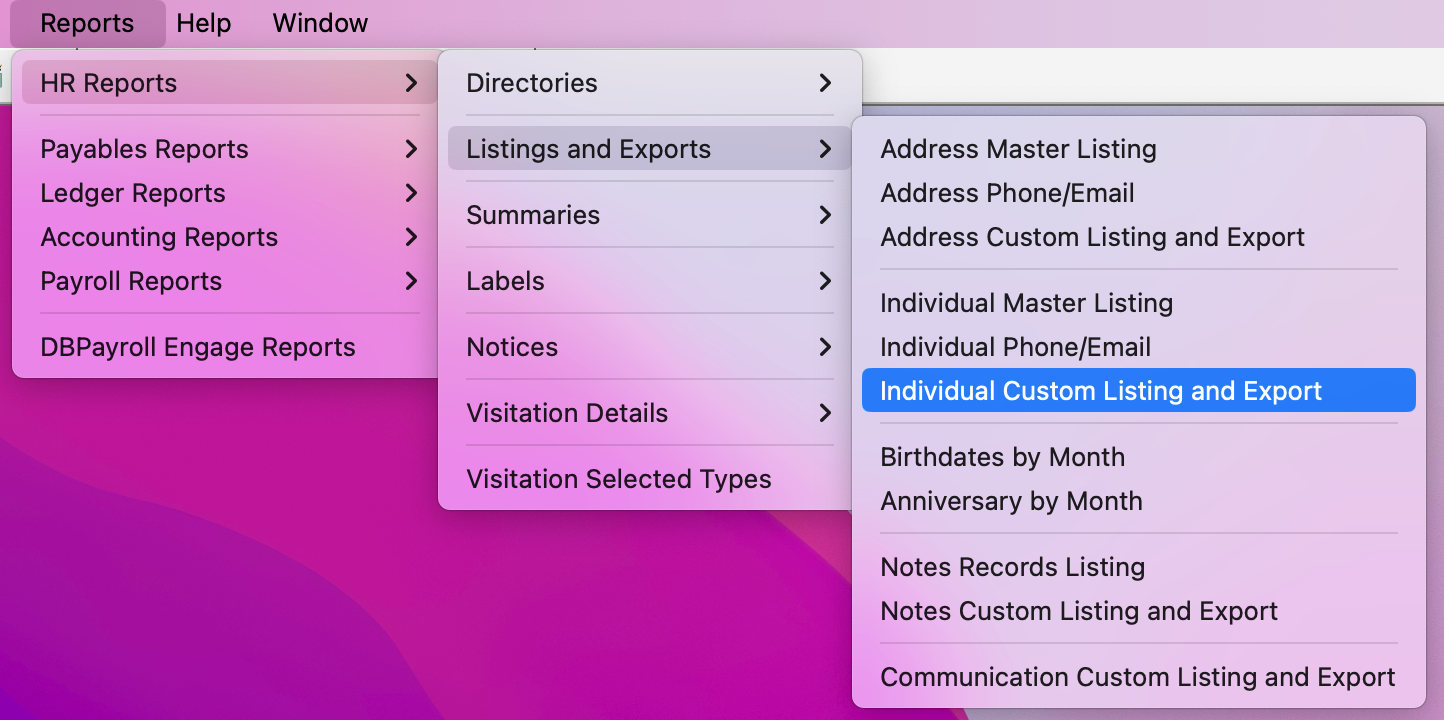
To navigate to the Individual Record Custom Listing Reports, go to Reports → HR Reports → Listings and Exports → Individual Custom Listing and Export.
-
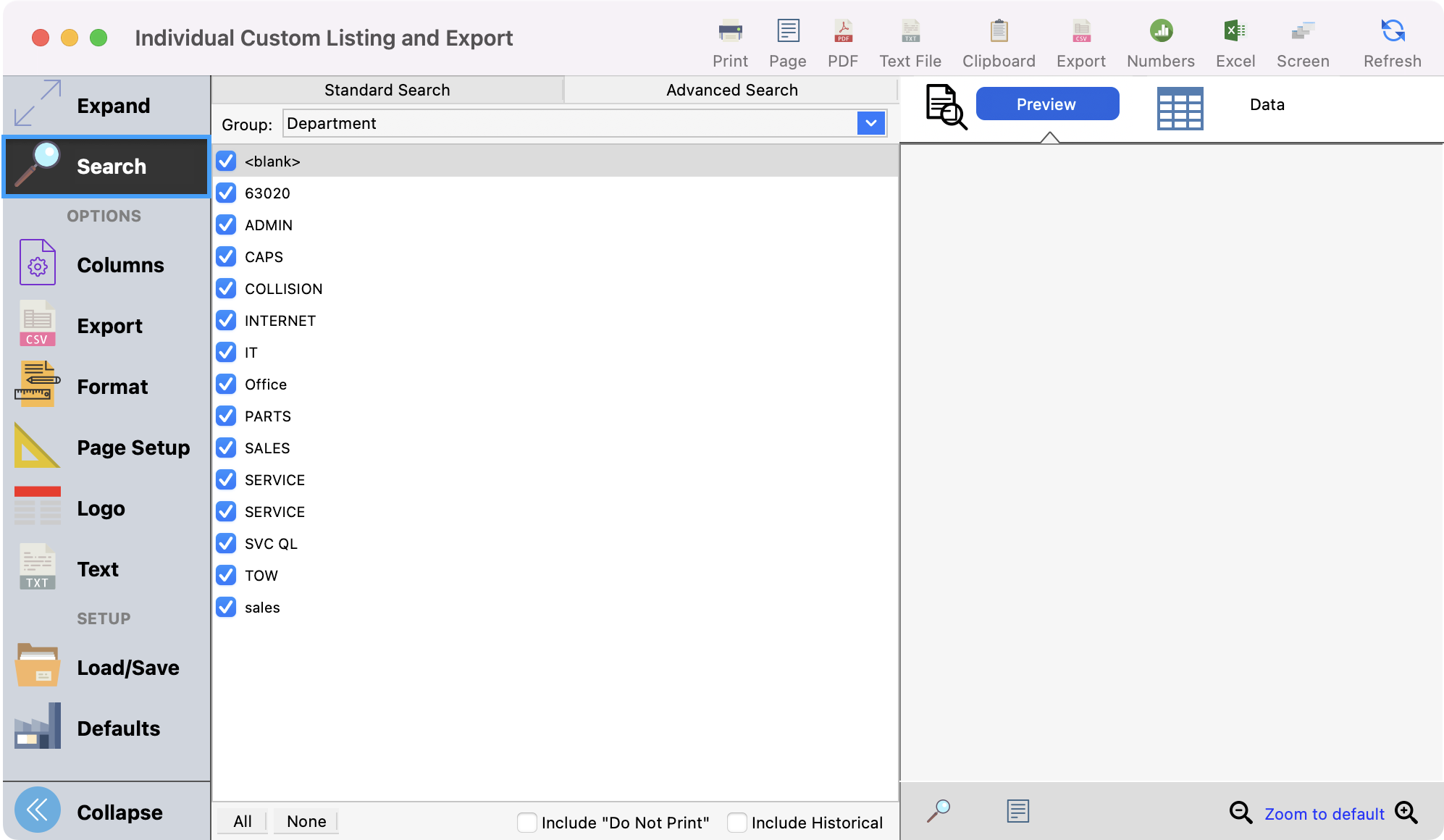
In the next window, setup your search criteria.
-
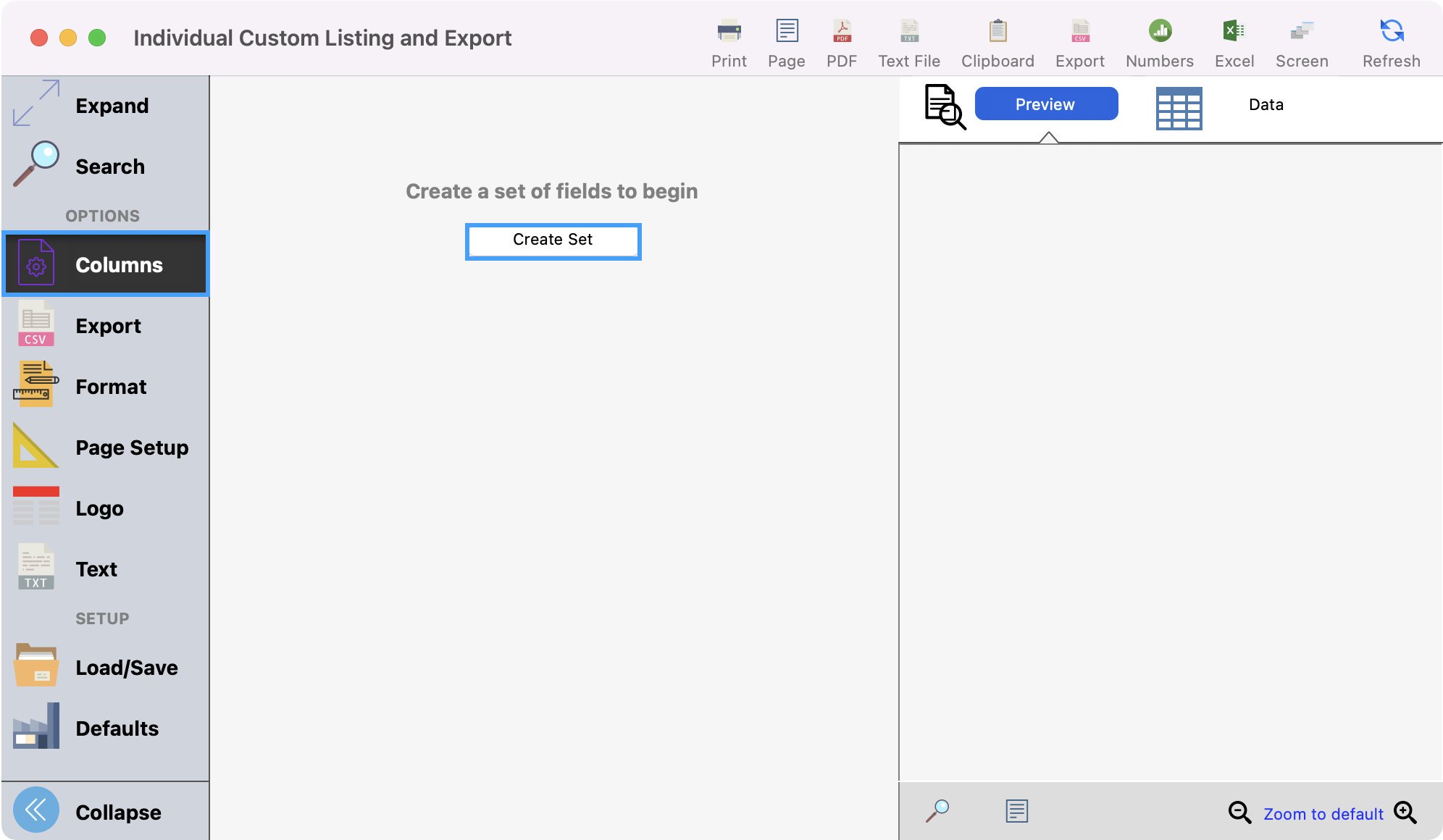
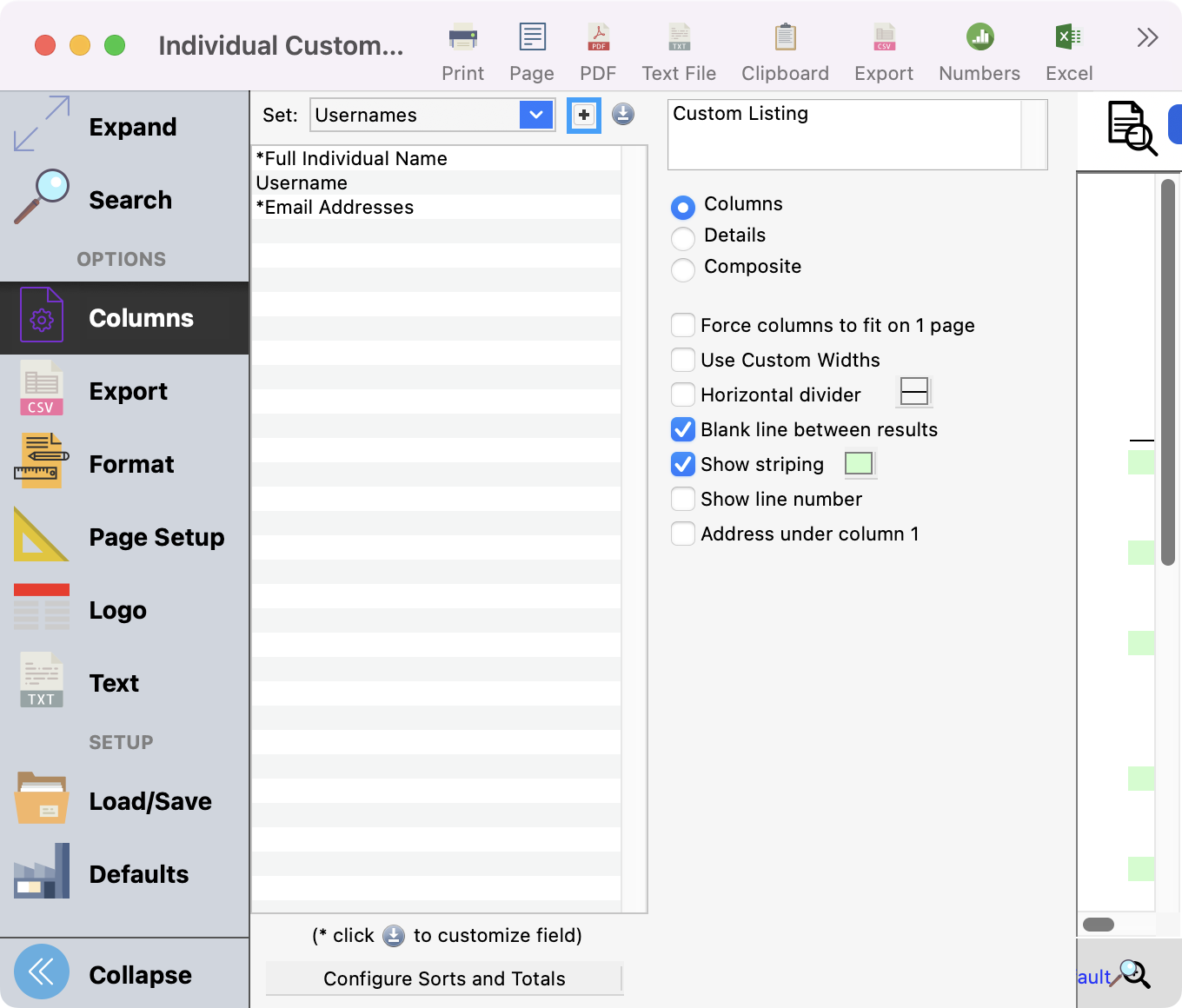
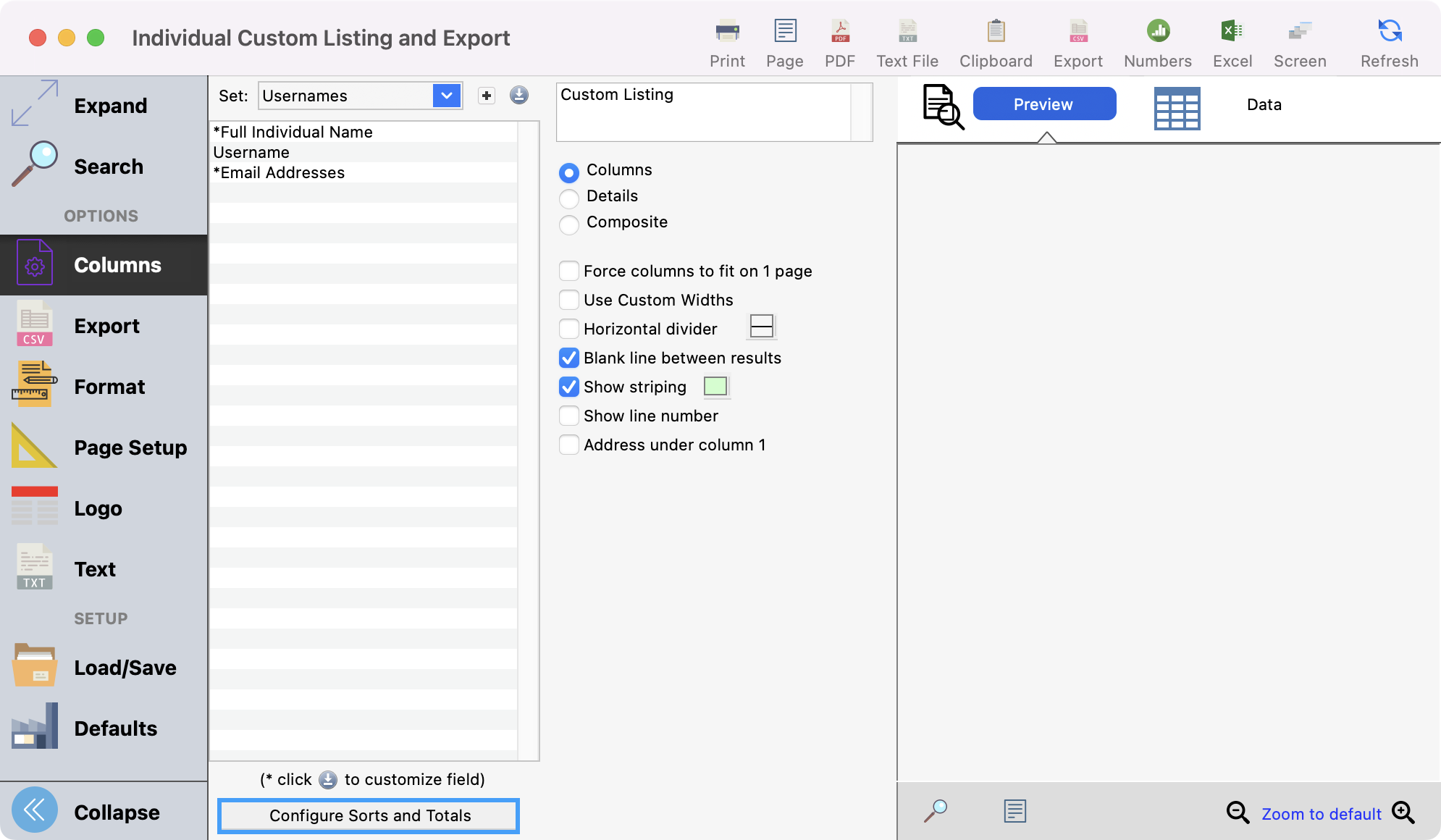
Next, click Column from the left sidebar. Here you can click Create Set or the + sign to add a new report set.
-
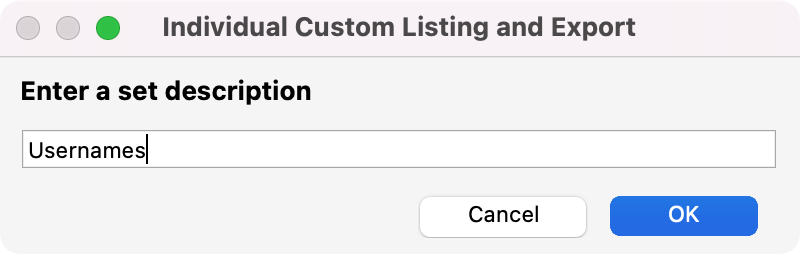
Enter a name for your report and click OK.
-
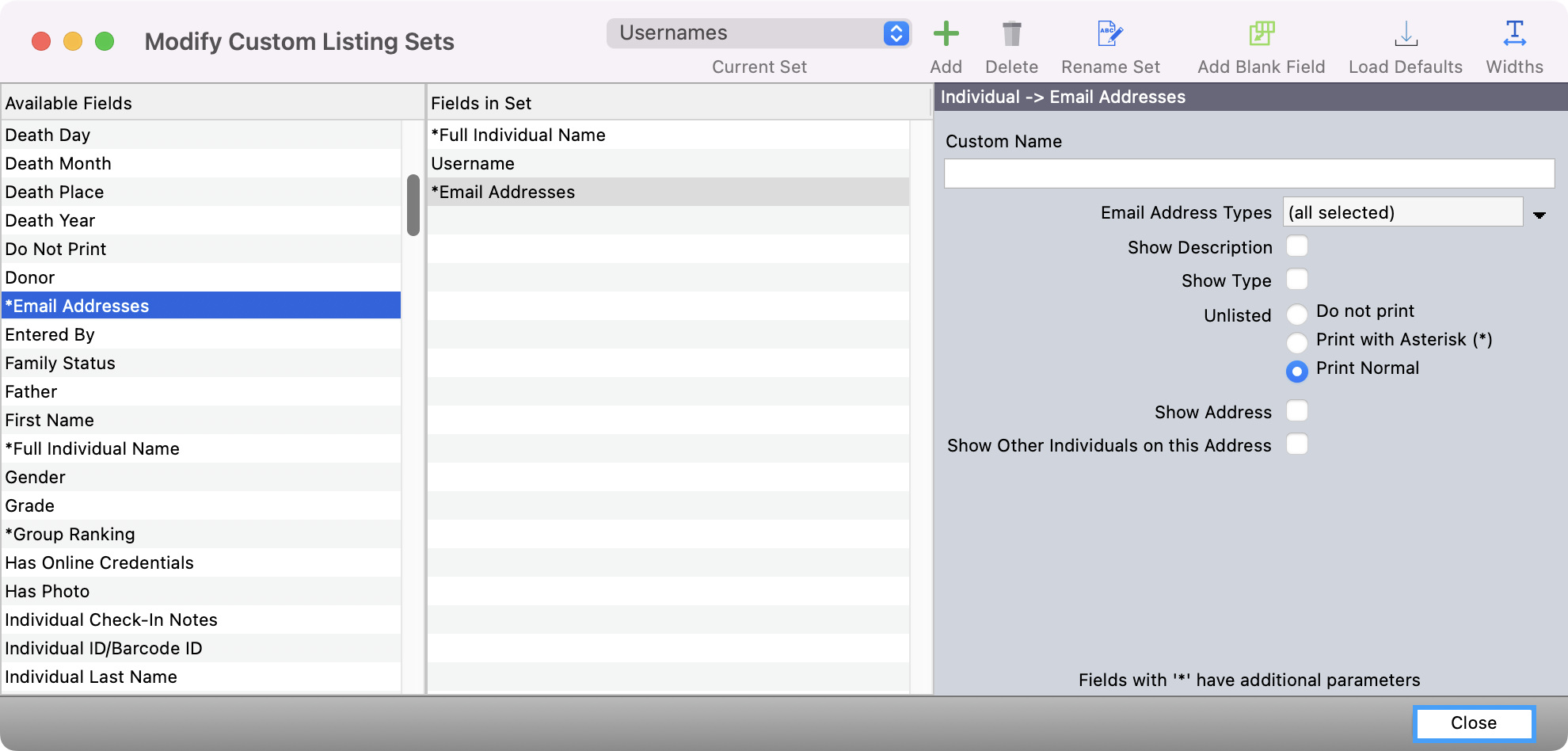
In the Modify Custom Listing Sets window, double click fields in the Available Fields column to be moved to the Fields in Set column. Choose whatever fields may be helpful such as Full Individual Name, Email Address, Username, etc. *Username is the last option on the list. Click Close when you have all the fields that you need.
-
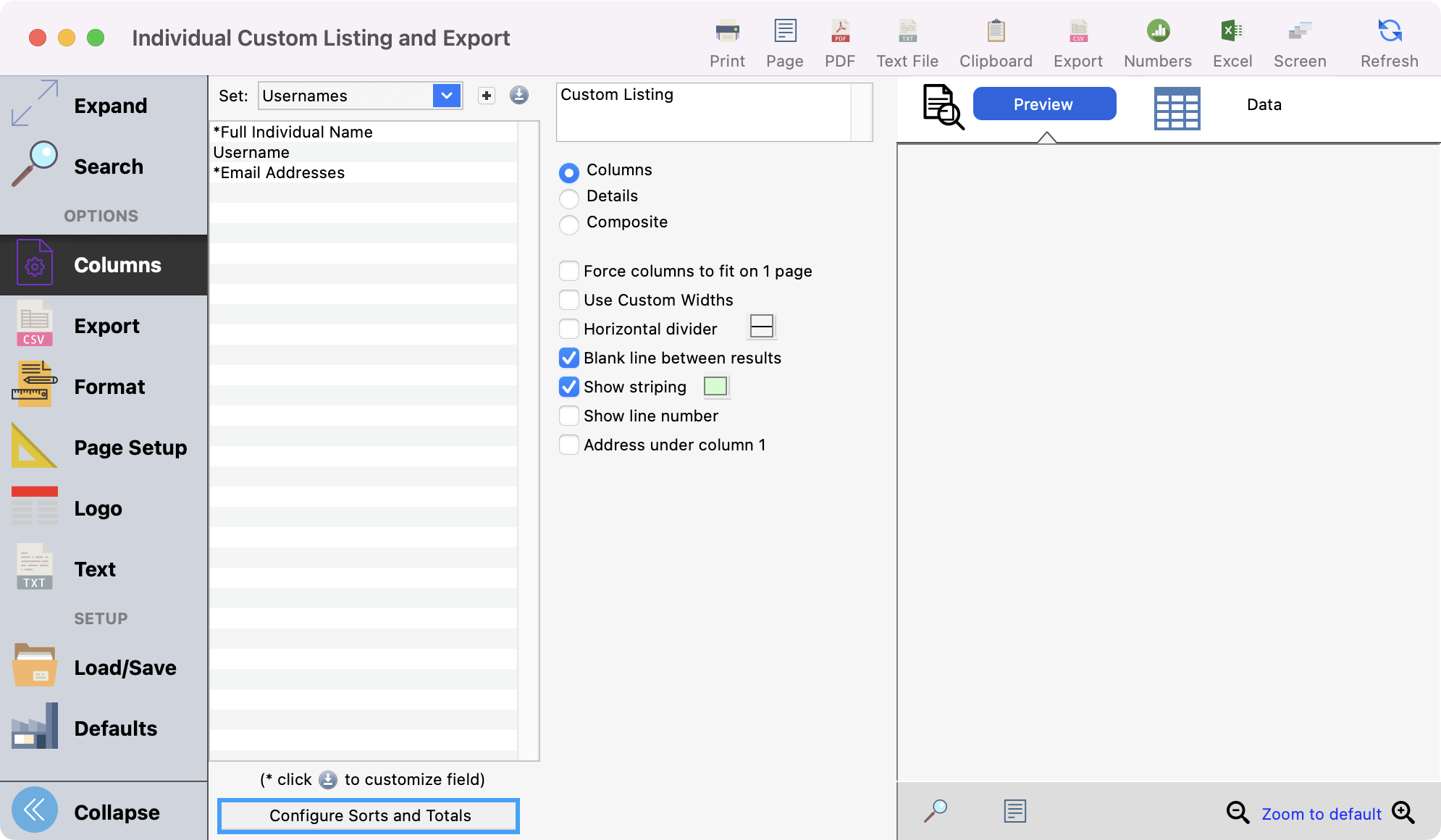
Next click Configure Sorts and Totals.
-
Choose how you want your report to be sorted such as alphabetized by username and click Save.
-
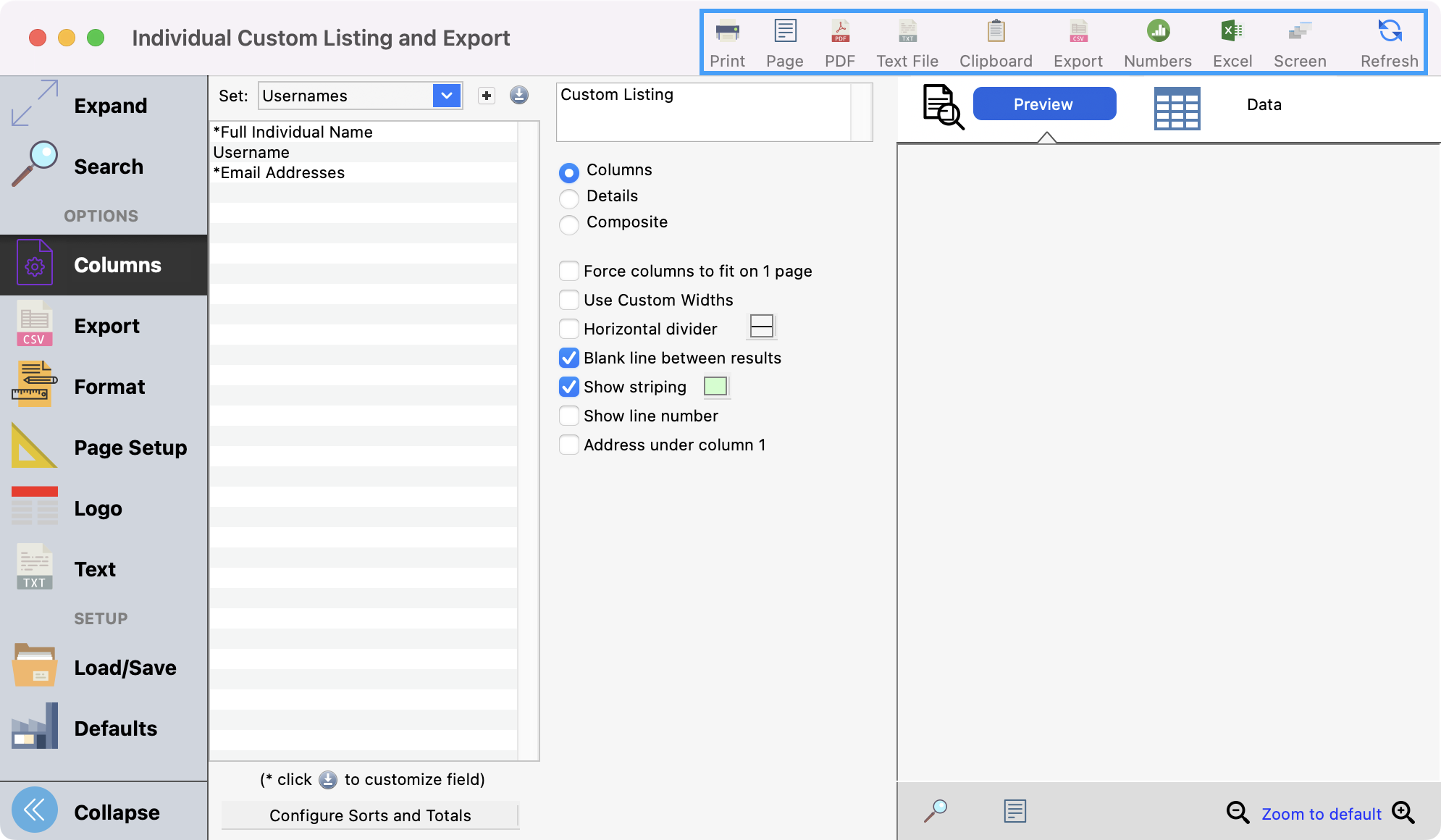
Lastly, click Refresh to see a preview of your report or export the report as you wish.